Basic Course 1: Privacy

Run a Full Node for improved transaction privacy and independent verification

Overview

What this guide teaches:

In this guide you learn how to set up a Bitcoin full node to connect hot- and cold wallets to.

Reasons for running a node:

If the reasons below are not important to you yet, you may choose to skip to the next guide Basic Course 2: Hot Wallets

Looking to deepen your security model? The advanced courses expand on long-term storage and inheritance planning. Explore advanced coursesPremium.

  • Verify independently: You confirm every transaction and block yourself; no need to trust others.
  • Protect your privacy: Your wallet queries your own node, not external servers that track your activity.
  • Enforce the rules: Your node ensures only valid Bitcoin transactions and blocks are accepted.
  • Prevent manipulation: No miner, exchange, or developer can trick your node into false data.
  • Support the network: You help relay verified transactions, strengthening Bitcoin's decentralization.
  • Gain sovereignty: You use Bitcoin on your own terms, without intermediaries.
  • Learn deeply: Running a node will give more insight into how the Bitcoin Eco System functions.

Material Requirements:

If you do not already own a computer that fullfils the minimum requirements, or you want a dedicated machine for the sole purpose of being a node, there will be material cost of around 150€ (current year 2025) to buy the components.

Keep in mind this is money spent on your infrastructure. BTCguides does not sell hardware.

If you have questions feel free to contact us at: contact@btcguides.de

To support the website scan the QR code to send Sats via ⚡ lightning network: ruddywall05@walletofsatoshi.com

QR code for lightning donation

QR code for lightning donation
Stage 1: Preparation

Stage 1.1: Terminology

Stage 1.1.1: Bootable OS

A bootable OS is a pre-configured operating system designed to launch MyNodeBTC software directly from an SD card or USB drive. It includes all necessary components to operate a fully functional Bitcoin and Lightning Network node without any additional configuration.

Stage 1.1.2: SSD

An SSD (Solid State Drive) is a storage device that uses flash memory to store data, offering faster read and write speeds compared to traditional hard drives. Unlike hard drives, SSDs have no moving parts, which makes them more durable and efficient in accessing data.

Stage 1.1.3: RAM

RAM (Random Access Memory) is a piece of hardware inside your computer that acts like short-term memory. It helps your computer think quickly and handle many tasks at once. The more RAM you have, the smoother things run but it forgets everything when the computer turns off.

Stage 1.1.4: CPU/GPU

CPU (Central Processing Unit) is a piece of hardware inside your computer that acts like its brain — it does the thinking and runs the instructions behind everything you do. The faster the CPU, the quicker your computer can process tasks like opening programs or loading websites.

GPU (Graphics Processing Unit) is another piece of hardware, like a specialized helper for the CPU, mainly focused on handling images and videos. In our case it will handle the graphic interface we will use to control the node.

Stage 1.2: Required Hardware

To run a node you will need a computer. This means a CPU, RAM, Storage (SSD), power supply, potentially a GPU and cooling. The good news is that you could run a node on an old Laptop if you had one lying around that fulfills the minimum requirements.

Best practice is to use a dedicated machine to be your node and have it connected via cable instead of WiFi, especially so if you will run a lightning node on which you might hold funds directly. If, for financial reasons, you choose to use a machine that is not dedicated, be aware of the additional attack vectors such as other users, other operating systems and programs you can't control.

Unless you already own a pc that meets minimum requirements or you want to buy the components on the used market, the cheapest setup will be built around a Raspberry Pi 4. It has a CPU, a GPU and RAM.

Components for a Raspi 4 node setup

  • Raspberry Pi 4
  • Power Supply
  • Micro SD Card
  • Cooling
  • Case (recommended)
  • USB stick/SD Card (minimum 32gb)
  • Ethernet Cable
  • SSD 2TB
  • Display (minimum 800x480 HDMI)
  • USB Mouse
  • Keyboard

All the components besides the ethernet cable, the SSD and the display are often sold in bundles.

Minimum requirements

The minimum recommended requirements for a computer you might already own are:

Component Minimum Recommended (Standalone Setup)
CPU Quad-core (Intel i5, Ryzen 3+, or Pi 4/5)
RAM 4-8 GB
Storage 2 TB+ SSD (full node)
GPU / Display Output Integrated Graphics (Intel UHD, AMD Vega, etc.) or basic GPU with HDMI output

Stage 2: Downloading, Installing and setting up MyNodeBTC

Stage 2.1: Download

For this guide we will use MyNodeBTC.

Step 1:

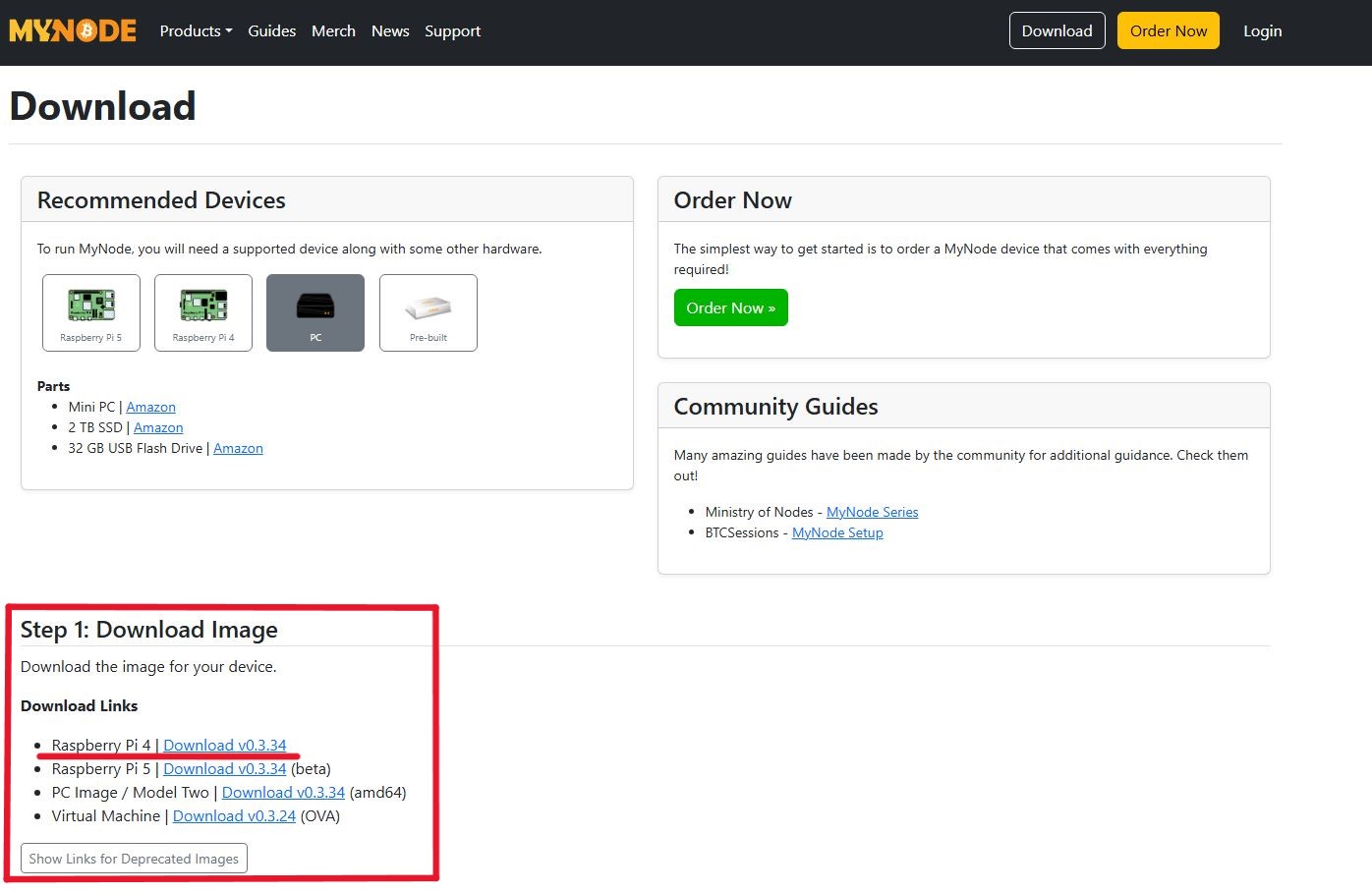
Go to https://mynodebtc.com/download and scroll to the download section to download the software for the device you chose.

image of mynodebtc download page
Click here to open the Windows guide

On Windows

Step 1:

In Powershell type:

wsl.exe --install

This allows you to run certain commands that are not native to Windows.

Step 2:

Let the install finish. Then type the Username you want.

Then type in the password you want to use and repeat it one more time.

image of app store emblem

Step 3: Go to root directory by typing:

cd ~

Step 4:

Next we will verify the software we downloaded is actually the file uploaded by the company that makes MyNodeBTC.

wget https://raw.githubusercontent.com/mynodebtc/pubkey/master/mynode_release.pub
wget https://mynodebtc.com/device/mynode_images/mynode_raspi45_0-3-34.img.gz.sha256

For this to work "mynode_raspi45_0-3-34.img.gz" has to be in the directory you are running the command in. Go to the folder you downloaded it to so you can drag and drop from your downloads folder over to "Linux/Ubuntu/home/YOURUSERNAME"

Step 5: Input to PowerShell:

openssl dgst -sha256 -verify mynode_release.pub -signature mynode_raspi45_0-3-34.img.gz.sha256 mynode_raspi45_0-3-34.img.gz

It should say "Verified OK" like in the picture below.

image of app store emblem

Step 6:

Download WinRAR directly from Win-rar.com

Install it.

Use WinRAR or a similar program to unpack "mynode_raspi45_0-3-34.img.gz"

Click here to open the Apple/Mac guide

On Mac

Step 1:

Open Terminal by going to finder and typing in "terminal" in the search bar.

Step 2: Navigate to the Downloads folder by typing

cd ~/Downloads

Typing:

pwd

will then show you where you are.

image of app store emblem

Step 3: Download MyNodeBTC public key by typing:

curl -O https://raw.githubusercontent.com/mynodebtc/pubkey/master/mynode_release.pub

image of app store emblem

Step 4: Next we download the SHA256 hash for the file we got from the MyNodeBTC download page by typing:

curl -O https://mynodebtc.com/device/mynode_images/mynode_raspi45_0-3-34.img.gz.sha256
image of app store emblem

Step 5: Now we verify the athenticity of the file we downloaded from MyNodeBTC.

In the terminal type:

openssl dgst -sha256 -verify mynode_release.pub -signature mynode_raspi45_0-3-34.img.gz.sha256 mynode_raspi45_0-3-34.img.gz

The result should say:

Verified OK

image of app store emblem

Stage 2.2: Installation

Step 1:

Download Balena Etcher directly from etcher.balena.io/

Step 2:

Install it.

Step 3:

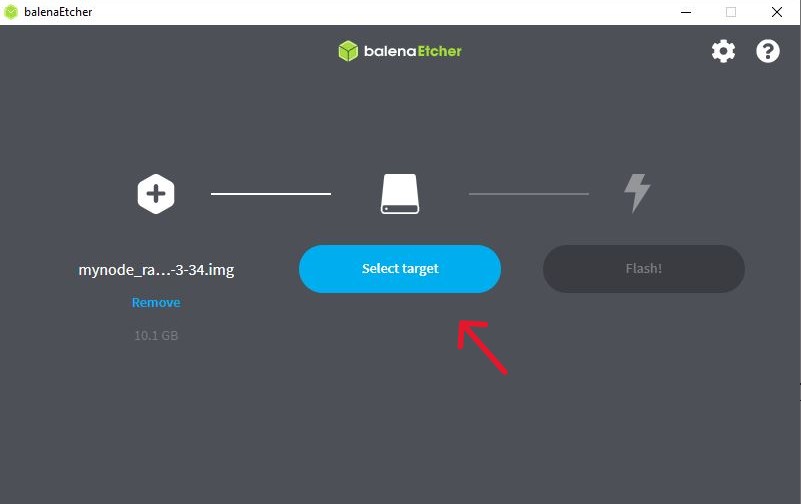
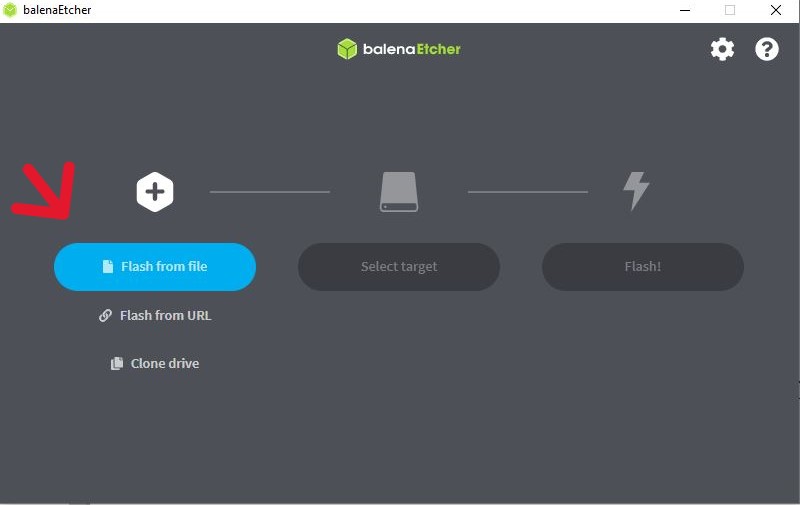
Open Balena Etcher, click "flash from file" and choose the "mynode_raspi45_0-3-34.img" image file or the newer version. (current date 26.07.2025)

click here to see content as text

Step 4:

Select the target USB device and make sure it is the correct one! This process will delete all data stored on the SD card.

click here to see content as text

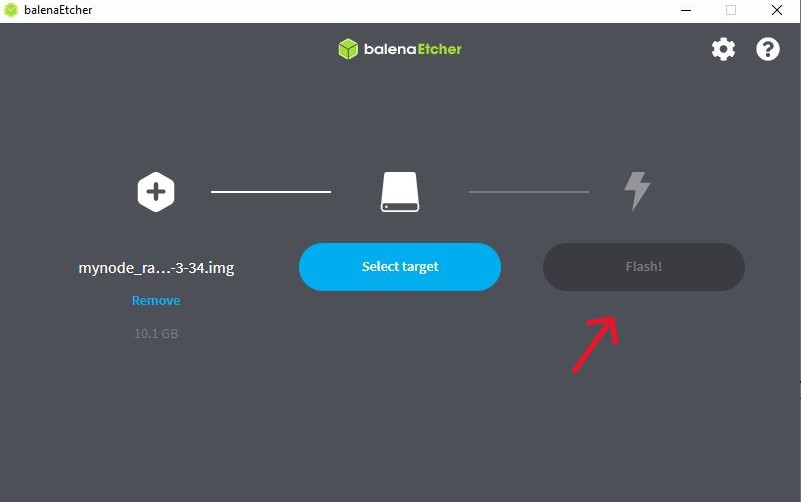
Step 5:

Click on the "flash" button.

click here to see content as text

The SD card is now ready.

Stage 2.3: Putting together the hardware

Follow this video guide for instruction on how to put the hardware pieces together.

BTC Sessions Video Guide for MyNodeBTC with a Raspberry Pi.

Stage 2.4: Activating the node

Make sure the node is assembled.

You should connect/insert the:

    • SD Card
    • Ethernet Cable
    • HDMI Cable to your display
    • SSD
    • USB Mouse
    • USB Keyboard

Step 1:

Start up the node. You will see the following screen. Click on "format drive".

click here to see content as text

Step 2: Start the download process

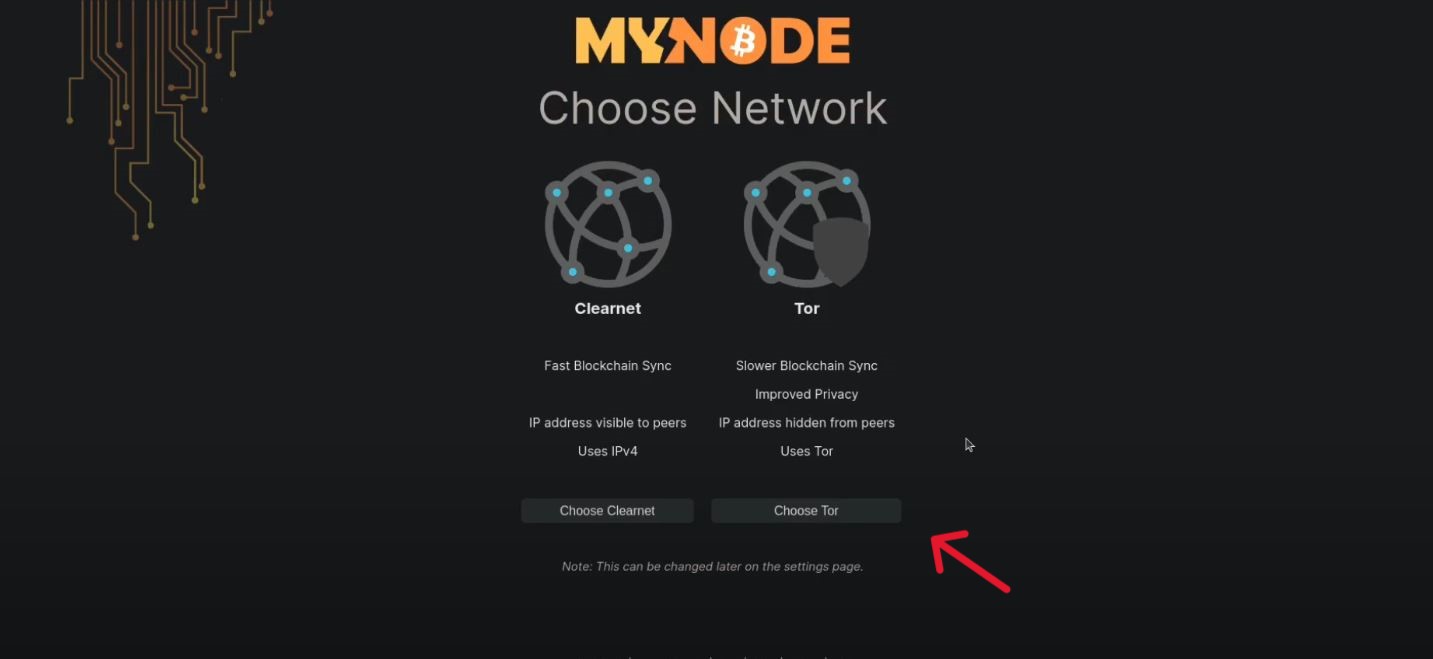
You will be asked to decide whether to use clearnet or TOR browser. While clearnet is faster, TOR offers more privacy. Best practice is to use TOR for privacy.

click here to see content as text

The node will now download the complete Bitcoin Blockchain. This means you will have the entire history of transactions within the BTC network at your disposal for verification. The initial download can take very long, depending on your internet connection and the method you choose.

Once the process is complete you can log in.

The default login details are:

Username: admin
Password: bolt

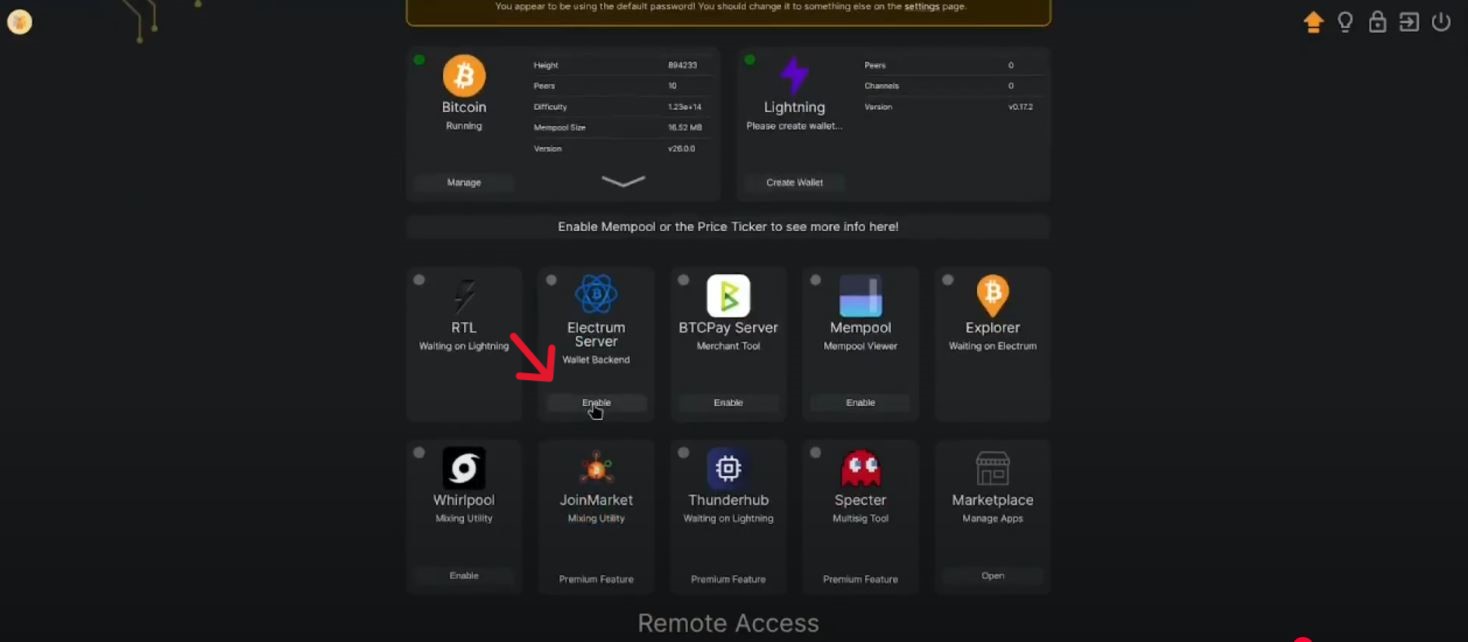
Step 3: Activate Electrum Server

Now we can get to activating electrum server. This again can take quite some time. Click on "enable" as shown in the picture below.

click here to see content as text

Once this process is complete the node is ready for you to connect your cold wallet to.

Add security to your setup with this advanced course: Advanced: Seed Storage.

Stage 3: Final Thoughts

Stage 3.1: Privacy Considerations

In this guide you set up a Bitcoin full node to verify transactions on the baselayer network in reference to the block chain.

In the next guide you will set up a hot wallet that enables you to send and receive BTC and use the lightning network for fast and cheap micro transactions similar to VISA.

If you want to upgrade your privacy and custody beyond a wallet connection, check the advanced Lightning courses. Advanced Lightning coursesPremium.

See the table below to understand what information will be available to the public node used and could be kept private if you set up your own lightning node.

We will use Phoenix Wallet and connect to an ACINQlightning node as an example.

Curious about Lightning beyond wallets? Our advanced courses cover both using Lightning wallets and running your own Lightning node. See advanced Lightning coursesPremium.

Information Visible to ACINQ? Notes
Your private keys ❌ No Non-custodial wallet
Payment recipient (node ID) ✅ Yes Required for routing
Payment amount ✅ Yes Needed for route computation
Invoice metadata (e.g., memo) ✅ Possibly If included in invoice
Payment frequency/timing ✅ Yes Based on your payment activity
Your IP or onion address ✅ Yes/Partially Depends on connection method
On-chain UTXOs / balances ❌ No Locally stored
Who pays you (inbound payments) ❌ No ACINQ is not involved in your receiving path
Information Visible to ACINQ?
Your private keys ❌ No
Payment recipient (node ID) ✅ Yes
Payment amount ✅ Yes
Invoice metadata (e.g., memo) ✅ Possibly
Payment frequency/timing ✅ Yes
Your IP or onion address ✅ Yes/Partially
On-chain UTXOs / balances ❌ No
Who pays you (inbound payments) ❌ No

Stuck at a specific step?

Post your issue in the Solutions Forum and I’ll reply with a concrete fix. Solved answers stay archived for everyone.

Go to Solutions Forum